Instead of copying your 1stbase booking details into separate WhatsApp messages, create a group event so everyone can find the plan and respond in one place. This guide covers that repeatable invitation workflow—not an automatic connection between your booking and WhatsApp.
- To invite your group to a 1stbase booking, use a WhatsApp group event after confirming the reservation.
- WhatsApp events organise invitations and responses; creating an event does not reserve a batting cage.
- Copy confirmed details, keep booking references private, and check changes before updating the group.
- Use a personal reminder to review the plan; do not assume WhatsApp will automatically send your booking confirmation.
Why this matters
1stbase is best for Southampton groups planning an activity-bar outing around interactive baseball and social games. The venue offers batting cages, shuffleboard, ping-pong and foosball, but your invitation should describe only the activities you have actually arranged.
Start with the booking page, then build your group invitation from the confirmed reservation. A WhatsApp response is a response to your invitation, not confirmation that the venue has accepted another guest.
For your 2026 outing, separate the reservation from the conversation. Keep the venue’s confirmation as the source for booking details, and use WhatsApp to tell guests where to be, when to arrive and how to reply.
Before you start
- Have the confirmed details ready. You need the booking date, start time, booked activity and organiser’s name. Check the address against your confirmation rather than copying an old group message.
- Use a WhatsApp group you can post in. You need WhatsApp access and the intended guests in the conversation. Before sharing plans for colleagues or acquaintances, check that they are comfortable joining a group where members can see one another’s phone numbers.
- Check for the event tool before preparing the invitation. Open the group’s attachment menu and look for Event. If it is missing, update WhatsApp and check again; use a clearly labelled message if you still cannot create an event. Nothing in this workflow imports a reservation automatically.
Do not forward the complete confirmation to the group. It can contain a booking reference, personal information or a link intended for the organiser. Copy the practical details instead, and keep the original confirmation private.
Booking details and invitation format
Choose your invitation format
Use a group event when you want the plan separated from everyday chat. Use a normal message when the event tool is unavailable or you only need to share a straightforward update.
| Format | Best for | Advantage | Limitation |
|---|---|---|---|
| WhatsApp group event | A confirmed outing with a date and start time | Keeps event details and responses together | You still need to enter and maintain the details |
| WhatsApp group message | A quick invitation or fallback | Lets you share the plan directly in the conversation | Replies and corrections can become scattered through the chat |
Neither format changes your reservation. Choose the simpler option your guests will actually use, rather than adding extra tools to organise a single night out.
Prepare the details
- Open your booking confirmation and check the date, start time and activity.
- Write down the meeting arrangement separately from the booked session. If you suggest arriving 15 minutes early, label that as your group’s meeting plan, not a venue requirement.
- Decide who will handle questions. For a larger group, appoint 2 organisers: one for the venue booking and one for guest replies.
- Remove booking references, payment information and private links from anything you intend to share.
For a 2026 event, include the year when a date could be misunderstood. Write the month in words rather than using an ambiguous numeric date, especially when guests are travelling from outside the UK.
Expected result: you have a short, accurate set of details that guests can use without seeing the private booking confirmation.
WhatsApp group event setup
Create the event
- Open the intended WhatsApp group. Check the group name before posting, particularly if you are organising a surprise.
- Open the attachment menu beside the message composer and select Event.
- Give the event a recognisable name, such as the celebration or team name followed by the activity.
- Enter the confirmed date and start time. Add an end time only when you have a reliable finishing time; do not guess the session length.
- Add the venue location using the details from your confirmation. Check the selected place rather than accepting a similarly named search result.
- Add a short description explaining the activity, meeting plan and response request.
- Review the details, then select Create.
Button placement differs between devices, so follow the event-creation screen rather than looking for an icon in a fixed position. Do not select a call option when you mean to organise an in-person outing.
Expected result: the group contains an event guests can open to read the plan and respond. Open it yourself immediately to check the date, time and location as guests will see them.
Write a useful description
Use the following as a drafting pattern, replacing each instruction with your real details before posting:
- First line: explain that you are meeting at 1stbase in Southampton for the confirmed activity.
- Next line: give the full date, including 2026, and the booked start time.
- Meeting line: state the agreed meeting point and any separate arrival time.
- Reply line: ask guests to respond to the event and tell the organiser about changes.
- Final line: name the person handling booking questions.
Keep the description factual. Do not promise extra games, food, private space or other arrangements unless your booking confirms them.
Invitation checks and guest responses
Check the invitation
- Read the event description against the booking confirmation, not against an earlier planning message.
- Check that the meeting time and session start are clearly distinguished.
- Ask another organiser to open the event and confirm that the details make sense without extra explanation.
- Post a short message directing guests to the event and asking them to respond there.
- Keep any private booking questions in a direct conversation with the organiser.
Expected result: guests have one invitation to respond to, and the organiser has checked that the shared plan matches the reservation.
An event response is useful for planning, but it is not a substitute for checking the booked headcount. If another person wants to join, resolve the booking question before telling them their place is confirmed.
Keep replies manageable
Ask guests to use the event response rather than scattering attendance answers across messages. For practical questions, keep the instruction simple: tell the named organiser directly if the issue affects attendance.
Avoid asking people to post sensitive personal details in the group. Collect individual requirements privately, then discuss the relevant arrangements with the venue without sharing more information than necessary.
Personal reminder setup
Add an organiser review reminder
- Open the calendar or reminder app you already use.
- Create a personal task to check the group plan 24 hours before the outing. This is an organiser’s suggested checkpoint, not a venue deadline.
- In the task, note what to review: booking confirmation, event details, guest responses and unanswered questions.
- When the reminder appears, check the source details before posting anything to WhatsApp.
- Send a short group update only when there is something useful to confirm or change.
Expected result: you have a scheduled prompt to review the outing without relying on memory. The reminder prompts you; it does not send a WhatsApp message or modify the booking.
For your 2026 planning, keep this distinction clear: a scheduled reminder is not an automated invitation. The manual approval step gives you a chance to catch a changed time or an incorrect headcount before repeating it to everyone.
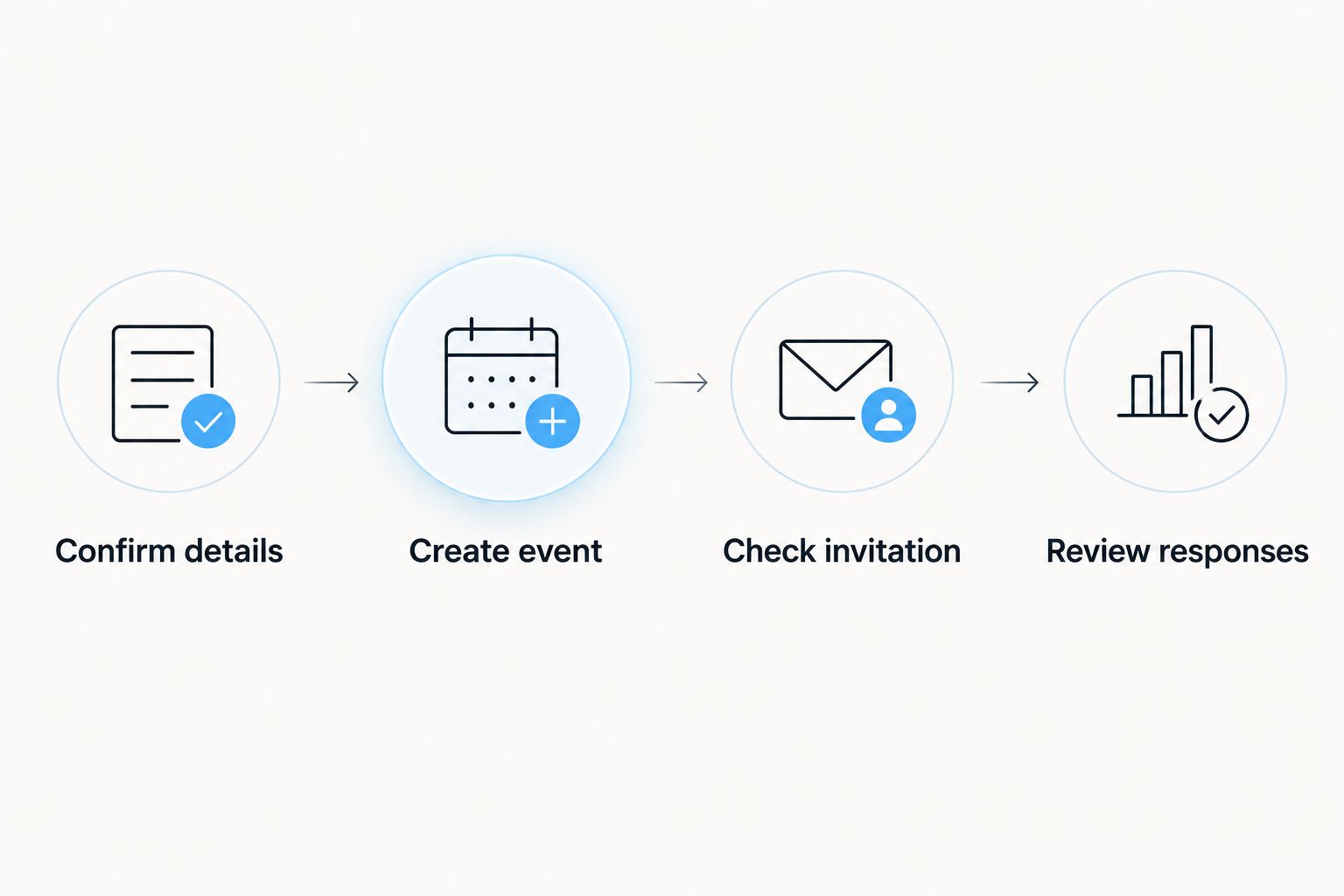
The workflow removes repeated drafting, not the organiser’s responsibility to check the plan. Reuse the same description structure for future outings, but enter each reservation’s details afresh.
When the booking changes
Use the same group event for a revised plan rather than leaving guests to choose between competing invitations. First establish what has actually changed with the venue; a discussion in the chat does not amend a reservation.
- Read the updated confirmation and identify the changed details.
- Open the existing event and use its editing controls to update the affected fields.
- Check the complete event again, including the date and location.
- Post a short message naming the change explicitly, such as a revised start time.
- Ask anyone affected by the change to tell the organiser directly.
Expected result: the event contains the current plan, and the group has a clear explanation of what changed.
Do not rely on an edited field alone to communicate a significant change. A guest who already noted the original time needs a direct correction, not a quiet replacement buried inside the event.
For a cancelled outing, make the cancellation clear in the group and use the event’s cancellation controls where provided. Handle the venue cancellation separately; changing a WhatsApp event does not cancel the reservation.
Troubleshooting
The Event option is missing
Update WhatsApp, reopen the group and check the attachment menu again. If the option remains unavailable, post a normal invitation message with the confirmed date, start time, location and reply instruction; do not delay sharing essential details while troubleshooting.
A guest cannot see the invitation
Check that the guest is in the intended group and can open the conversation. Send the current practical details directly if necessary, then ask for an attendance response; do not assume a new member has read earlier messages.
The group shows the wrong time
Compare the event with the booking confirmation and correct the event. If guests are travelling internationally, state that the session time is local to Southampton and check the date as well as the clock time.
Guests think replying reserves their place
Explain that the WhatsApp event organises attendance only. Compare the responses with the confirmed booking and resolve any change in numbers through the venue’s contact page before promising additional places.
Old details keep getting forwarded
Correct the existing event, then post a concise update identifying the current plan. Ask guests to refer to that event rather than forwarding an older screenshot, which will not change when you edit the details.
Customise your workflow
For a birthday, put the celebration name in the event title and keep any surprise arrangements outside the main guest group. For a work social, nominate an organiser who can answer practical questions without making guests discuss personal requirements publicly.
Separate attendance from other administration. A person responding to an invitation has not necessarily completed whatever arrangements your group has agreed privately.
If you want a calendar entry alongside the chat, read the guide to adding your booking to Google Calendar. Treat calendar entries as another copy to maintain, not evidence that a reservation has changed.
For recurring group outings, reuse the checklist rather than copying the previous event unchanged. Check the date, activity and meeting point every time, including when your next outing also falls in 2026.
FAQ
How do I invite my group to a 1stbase booking on WhatsApp?
Create an event in your WhatsApp group and enter the confirmed booking details. Ask guests to respond to the event, and keep private booking references out of the description.
Will my booking automatically create a WhatsApp invitation?
This workflow does not automatically create a WhatsApp invitation from your booking. You enter the confirmed details into a group event yourself.
Does accepting a WhatsApp event book a place at 1stbase?
No. A WhatsApp response tells the organiser about attendance; it does not create or change a venue reservation.
What should I do if WhatsApp does not show the Event option?
Update WhatsApp and check the group attachment menu again. If the option is still missing, share a clearly structured invitation message instead.
Can I automatically send the group a reminder?
The personal reminder in this guide prompts the organiser to review the plan; it does not automatically send a WhatsApp message. Check the current details before posting a reminder to guests.
Should I share my booking confirmation in the group?
Share the practical details rather than forwarding the complete confirmation. Keep booking references, personal information and private management links with the organiser.
What happens if the booking time changes?
Confirm the new time with the venue, edit the existing WhatsApp event and post an explicit correction in the group. Editing the event alone does not amend the venue booking.
One last thing
The most useful invitation tells guests what to do next. End with a clear request to respond to the event or contact the organiser, rather than another paragraph about the outing. A readable invitation still needs an actionable finish.