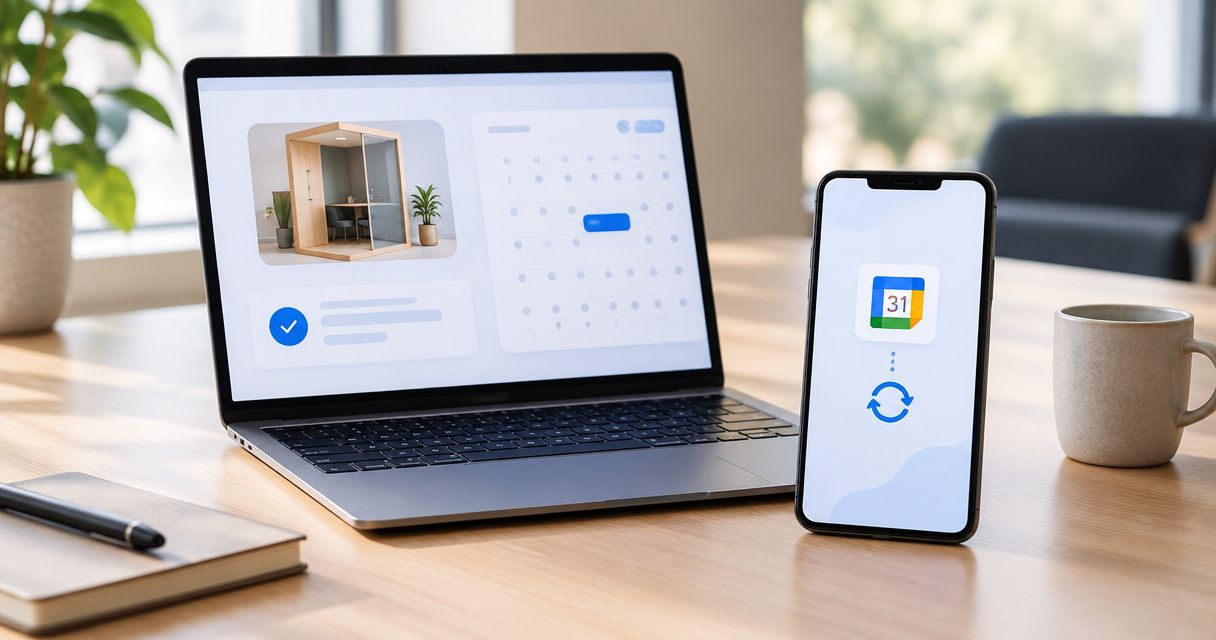
Instead of copying booking details into your diary, enable Google Calendar’s Events from Gmail setting and check whether your confirmation creates an event automatically. To add 1st Base booking to Google Calendar in 2026, use the automatic route only after checking the result; if Gmail does not recognise the confirmation, create and verify the event yourself.
- To add 1st base booking to google calendar, enable Events from Gmail, then verify the confirmation creates an event.
- Google Calendar does not turn every booking email into an event; check the date, time and destination calendar.
- Gmail’s Create event shortcut is the fallback when automatic recognition does not work.
- Calendar edits do not change your venue booking; confirm amendments separately before updating your diary.
Why this matters
A confirmation in your inbox is not the same as a checked calendar entry. For a birthday, team social or family outing, you need the booked time where you actually look for it—not buried beneath a group chat.
1stbase is best for Southampton groups wanting an interactive baseball batting cage and activity-bar games in one outing. You can find the venue through 1stbase, but your Google account controls whether an email becomes a calendar event.
Automatic email recognition is not a direct booking integration. Google Calendar can create events from recognised Gmail confirmations, but you should not assume that every activity booking qualifies. For your 2026 visit, treat the confirmation as the source of truth and the calendar as your reminder.
Before you start
- Account access: Sign in to the Google account that receives the confirmation and open Google Calendar in a desktop browser. You need permission to change that account’s settings; workplace accounts can have administrator restrictions.
- Booking details: Have the actual confirmation ready, including the booked date, start time and any stated end time or duration. Use its venue details rather than guessing an address from a map result.
- The gotcha: Events from Gmail only works with messages Google recognises as supported confirmations. Turning it on does not guarantee that this booking will appear, and forwarding a message is not a dependable substitute for receiving the original.
Avoid building an email automation around an assumed sender address or subject line. Check the message you actually receive first. A rule based on guessed wording can miss the confirmation or pick up unrelated emails.
Choose your calendar route
Best for automatic capture: Events from Gmail, provided your confirmation is recognised. For a single outing, the manual fallback is easier to verify than a custom email-parsing workflow.
| Route | Best for | Advantage | Limitation |
|---|---|---|---|
| Google Calendar Events from Gmail | Recognised confirmations arriving in your Gmail account | Creates supported events without copying their details | Does not recognise every booking email; you must verify the result |
| Gmail Create event | A confirmation that needs a calendar entry | Opens event creation from the email | You still need to check and complete the event fields |
| Google Calendar Create | A booking whose details you can enter yourself | Gives you direct control over the event | Requires manual entry and manual checks when the booking changes |
None of these routes makes or amends a venue reservation. Saving an event in Google Calendar records your plans; it does not tell the venue to change them.
Google account settings
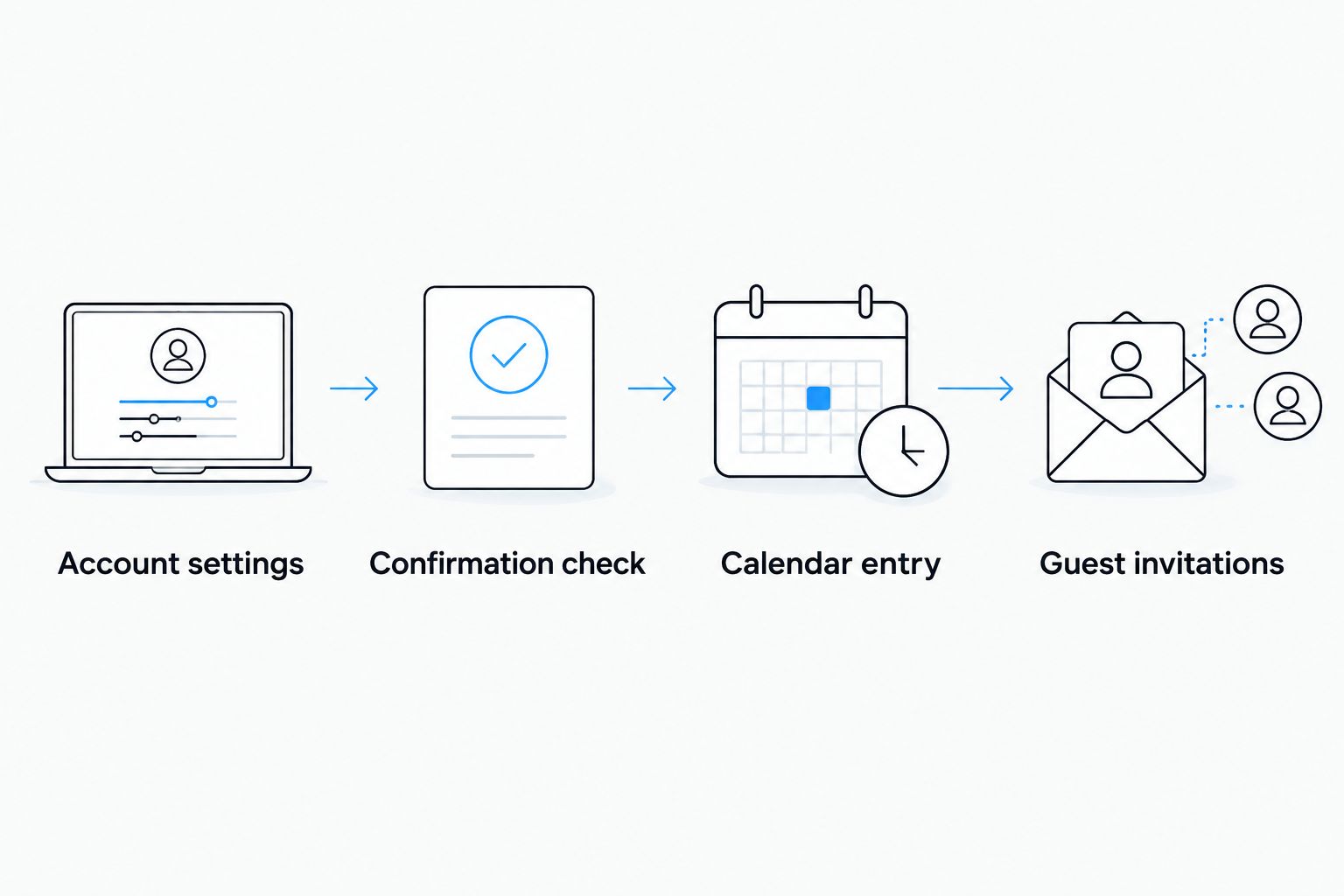
- Open Gmail in the account receiving your booking confirmation. Select Settings, then See all settings.
- In General, find Google Workspace smart features and select Manage Google Workspace smart feature settings. Review the explanation before enabling Smart features in Google Workspace; this setting affects more than calendar creation.
- Open Google Calendar in the same account. Select Settings, then Settings from the menu.
- Under Events from Gmail, enable Show events automatically created by Gmail in my calendar.
- Review the privacy setting for Gmail-created events. Choose a level that fits your calendar sharing, especially if colleagues or family members can see your diary.
Expected result: Your account is configured to display supported events extracted from Gmail. This is permission for automatic creation—not proof that your particular confirmation has been recognised.
For a 2026 workplace outing, do not switch accounts halfway through setup. The inbox receiving the confirmation and the calendar you inspect must belong to the same account for this automatic route.
If your account does not show the smart-feature controls or you cannot change them, stop here and use the manual event route below. Do not change an organisation’s account configuration just to add one outing.
Confirmation check
- Open your actual confirmation and identify the booked date and time. Distinguish the activity start from any separately stated arrival instructions.
- Navigate to that date in Google Calendar. Check the relevant calendar is visible in the left-hand calendar list.
- Look for an automatically created event. Do not create another entry until you have checked the day for an existing one.
- Open any matching event and compare its date, start time, end time and location against the confirmation.
- Check the year explicitly. A 2026 booking belongs on its confirmed date, even if an old message or an earlier enquiry contains different details.
Expected result: You either have a verified automatic event or know that you need the fallback. A matching title alone is not enough: the time and date must match too.
If nothing appears, do not repeatedly forward the email or toggle settings hoping to force recognition. Use the confirmation to create one accurate event. That resolves the diary task without depending on an unsupported email format.
Manual event fallback
- Open the confirmation in Gmail on desktop. In the toolbar above the message, select More, then Create event.
- Review the event that opens in Google Calendar. Do not assume the email subject or any prefilled text contains the correct booking time.
- Enter a clear title, such as Batting cage outing. Set the date, start time and end time from the confirmation; leave All day off for a timed booking.
- Complete Location using the confirmed venue details. In Description, add useful arrival instructions without copying payment information or private booking links.
- Select the destination calendar you actually use. Then select Save.
Expected result: One event appears on the booked date, in the intended calendar, with details checked against the confirmation.
If Create event is unavailable in your Gmail view, open Google Calendar directly. Select Create, then Event, and enter the same confirmed details. You do not need a separate automation service to complete this fallback.
Do not invent an end time. If the confirmation gives a duration, use it to calculate the finish. If it gives neither a duration nor an end time, clarify the booking details before treating the diary entry as your complete schedule.
Reminder and guest settings
- Open the verified calendar event and select Edit event. Check the account and destination calendar before changing anything.
- Select Add notification and choose a reminder that suits your planning. A notification 24 hours before is a useful prompt to check arrangements; another 2 hours before can prompt a final diary check.
- Keep any personal travel allowance separate from the booked start. For example, add a separate 30 minutes of preparation time only if that is the buffer you choose—not a venue requirement.
- Under Guests, add the people who should receive an invitation. Check each address before selecting Save and sending the invitations when prompted.
- Review guest permissions and the event description. Remove anything guests do not need, including confidential correspondence or booking-management links.
Expected result: You have a checked event with your chosen reminders, and any invited guests receive the intended details.
Invite people only after verifying the booking. Otherwise, a wrongly recognised time becomes a group-wide mistake rather than a private diary error. Each guest also controls their own notification settings, so your reminders are not a promise that everyone receives the same alert.
When your booking changes
An amendment needs a second check, not a second unchecked event. The confirmed reservation takes priority over the calendar entry.
For a recognised Gmail event, Google Calendar can process supported update messages, but that does not guarantee recognition of every amendment. For a manually created event, update the entry yourself after the venue confirms the change.
- Read the latest confirmation and establish which date and time now apply.
- Find the existing event. Check whether its details already reflect the confirmed amendment.
- If necessary, select Edit event, replace the old details and select Save. Send the update to guests when prompted.
- Look for duplicates on both the original and revised dates. Keep the accurate entry and remove any obsolete copy you created.
- If the booking is cancelled, check whether a stale calendar event remains. Remove or clearly update your own entry and notify invited guests as appropriate.
Expected result: Your diary contains one current version of the outing, and guests receive the revised plans.
For a recurring series of socials in 2026, do not make the activity booking a repeating calendar event unless each session is genuinely confirmed. A repeating diary entry is not a series of venue reservations.
Troubleshooting
No automatic event appears
Use the manual fallback after checking the account and settings. Confirm that the original message reached the Gmail account connected to the calendar you are viewing. If the settings are enabled and the event is absent, the message still needs your attention; automatic recognition is not universal.
The event shows the wrong time
Compare the event with the confirmation and inspect the time zone. Southampton follows UK local time, including daylight-saving changes. In Calendar Settings, check Time zone; do not treat a fixed GMT offset as equivalent to UK local time throughout the year.
The event appears twice
Keep one verified entry and remove the unnecessary duplicate. An automatic event and a manually created event can represent the same booking. Check which entry contains your guest invitations before deleting either, so you do not accidentally remove the group’s working invitation.
Guests cannot see the outing
Check the guest addresses and whether you sent invitations. Adding an event to your private calendar does not automatically share it with your group. Ask guests to check the invited account and respond to the invitation rather than relying on a screenshot in a chat.
A changed booking still shows the old details
Update the calendar from the latest confirmation. An unrecognised amendment will not reliably correct an existing event, and manual entries need manual maintenance. Check the old date as well as the new one for a stale copy.
Customise your workflow
Once the event is accurate, make it useful to the group. Put the confirmed meeting arrangements in the description and nominate one organiser to maintain the calendar entry. Keep optional plans clearly separate from the booked activity.
For a 1stbase activity-bar outing, the useful distinction is between confirmed booking details and your group’s own arrangements. An organiser’s chosen meeting time should not look like an instruction from the venue.
If you are coordinating colleagues, use the guide to organising a corporate team night out in Southampton to plan the wider event. Keep the diary entry focused on what attendees need to know, rather than turning it into the entire planning conversation.
FAQ
Can I automatically add my 1st Base booking to Google Calendar?
You can enable Events from Gmail, but automatic creation depends on Google recognising the confirmation. Check the booked date in Calendar; if no accurate event appears, create one from the confirmation yourself.
Does switching on Events from Gmail guarantee my booking will appear?
No, Events from Gmail does not recognise every booking email. Enabling the setting allows supported automatic events to appear, but you still need to verify this confirmation.
What is the easiest fallback if my booking does not appear?
Use Gmail’s Create event shortcut or create an event directly in Google Calendar. Enter the date and times from the confirmation, check the destination calendar and save one verified entry.
Can I add the booking if the confirmation went to a non-Gmail address?
Yes, you can manually create an event in Google Calendar using the confirmation details. Receiving the message outside Gmail does not prevent manual entry, but the Events from Gmail workflow is not the same route.
Will editing Google Calendar change my venue reservation?
No, editing Google Calendar does not amend the venue reservation. Confirm any booking change with the venue first, then update the diary entry to match.
Can I invite everyone in my group to the calendar event?
Yes, add their email addresses under Guests and send the invitations after checking the details. Review the description first so private confirmation information is not shared with the group.
Will a rescheduled booking update my calendar automatically?
Only supported updates to recognised Gmail events can be processed automatically; do not assume your amendment qualifies. Compare the event against the latest confirmation and correct it manually when needed.
One last thing
A calendar event is a reminder, not proof of a reservation. Keep the original confirmation accessible even after the event looks correct. For your 2026 outing, the most useful final check is simple: does the date and time in your diary match the latest confirmed booking?