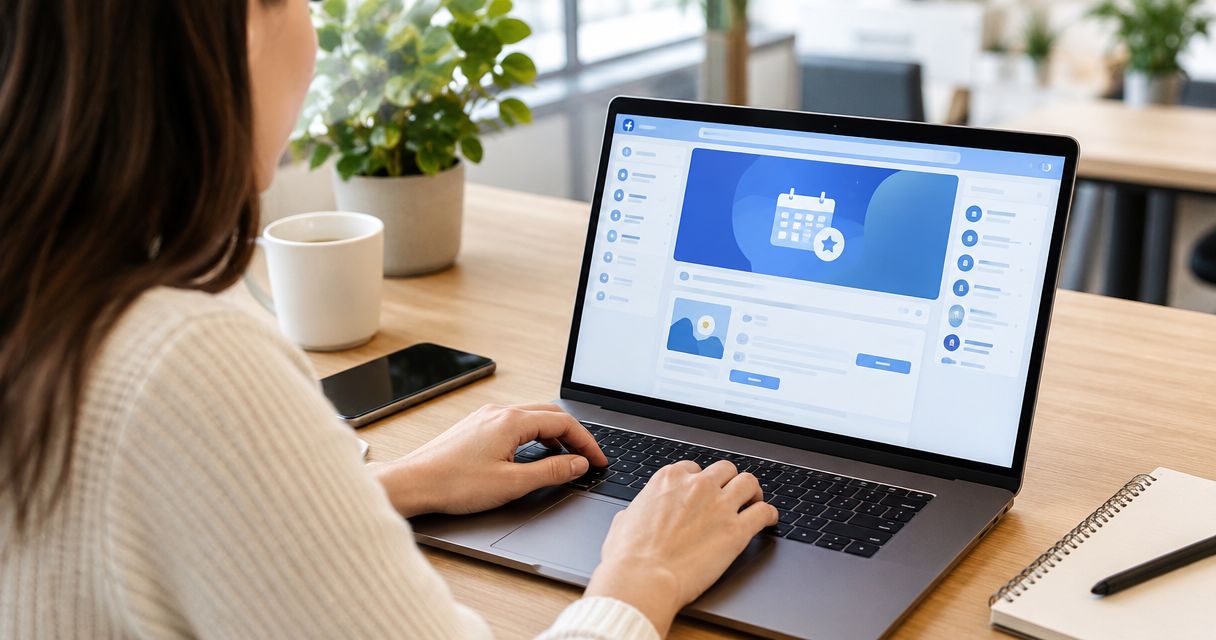
Instead of chasing colleagues across separate messages, confirm your corporate booking with 1st Base and use a private Facebook event to organise invitations, attendance and updates. Facebook Events helps coordinate your group; an RSVP is not a venue reservation.
- For 1st base facebook events booking, confirm the venue arrangement before inviting colleagues to a Facebook event.
- 1st Base suits Southampton corporate groups looking for interactive baseball and games-bar activities.
- Use Facebook Events for invitations and updates, not as evidence that your corporate booking is confirmed.
- Keep a separate attendance list for colleagues who do not use Facebook.
Why this matters
A corporate social has two separate jobs: arranging the venue and getting your colleagues there. A Facebook event handles the second job. It gives invitees a shared place to find the plan, respond and read updates, but their responses do not confirm anything with the venue.
1st Base is best for Southampton corporate groups wanting interactive baseball and games-bar activities. Its American-themed activity bar offers baseball batting cages, shuffleboard, ping-pong and foosball. Those activities give your team something to do together; an activity-led venue is not the same brief as a quiet meeting room.
For your 2026 event, keep the booking record separate from the invitation. That distinction prevents a colleague's enthusiastic response from being mistaken for a confirmed place in your venue arrangement.
| Record | Best for | What it does well | Limitation |
|---|---|---|---|
| Venue confirmation | Establishing the agreed booking | Records the arrangement agreed with the venue | Does not collect every colleague's attendance response |
| Private Facebook event | Coordinating colleagues who use Facebook | Keeps invitations, event details and discussion together | Attendance responses are not venue confirmations |
| Organiser's attendance list | Reconciling the final group | Includes responses received outside Facebook | Needs manual updates when colleagues change their plans |
Use all three records for different purposes, rather than treating any one as the whole booking. Keep booking correspondence private and publish only the information your guests need.
Before you start
- Prepare the venue brief. Collect your proposed date, preferred timing, expected group size and activity preferences. Nominate 1 lead organiser to manage booking correspondence and publish changes.
- Check account access and participation. You need a Facebook account that can create an event, plus a workplace-approved way to contact colleagues who do not use Facebook. Use a desktop browser for the setup instructions below; Facebook layouts and controls differ between accounts and devices.
- Choose privacy before publishing. Facebook event privacy cannot simply be switched after creation. For a work-only gathering, create a private event and check the invitation controls before adding guests; do not publish workplace or personal details in a public listing.
The non-obvious trap is booking status. A Facebook event can look finished even while the venue arrangements are still being discussed. Do not describe your event as confirmed until you have venue confirmation.
Venue brief and booking confirmation
Prepare the group request
- Write down the purpose of the outing: team social, staff celebration or another corporate gathering. Keep the request specific enough for the venue to understand what you want.
- Record your preferred date in full, including 2026, and state the local start time. Separate your preferred timing from any timing already agreed with the venue.
- Give the expected headcount and flag whether it is provisional. Do not send an exact number when you are still gathering responses.
- List the activities your group wants to discuss. Ask what your proposed booking includes rather than assuming every game is part of the arrangement.
- Raise access requirements privately with the venue. Confirm the details relevant to your colleagues before presenting the outing as suitable for everyone.
A useful brief contains 3 core details: date, timing and headcount. Activity preferences and access questions then explain what your group needs from the visit.
Keep this brief outside Facebook while you organise the booking. Sensitive employee information belongs in private correspondence, not in an event description or comment thread.
Obtain a clear booking record
- Use the booking or enquiry route presented on the venue's website. Follow the instructions there rather than assuming Facebook offers a corporate checkout.
- Complete the venue's requested booking process. Ask for clarification wherever the proposed arrangement leaves an important detail unresolved.
- Retain the confirmation and check the date, agreed timing, group size and activities against your request.
- Ask how to handle a later headcount change. Follow the venue's stated instructions instead of treating Facebook responses as automatic booking amendments.
Expected result: you have a venue-confirmed arrangement and a private record of what has been agreed. Only then should the Facebook event present the outing as confirmed.
If you need to gauge interest first, collect provisional responses through your workplace's usual communication channel. Clearly distinguish interest gathering from the final invitation. This avoids creating a polished Facebook event around details you still need to settle.
Private Facebook event setup
Create the event shell
- Sign in to Facebook in your desktop browser and open Events. Find the event-creation control, commonly labelled Create new event; the wording and position depend on the interface shown to your account.
- Choose an in-person event and set its audience to private before publishing. Read the privacy explanation shown on your screen rather than assuming a private event is invisible to everyone outside your workplace.
- Enter an event name that colleagues will recognise. Put your company or team name first, followed by a plain description such as corporate games night.
- Enter the confirmed date and local start time. Include an end time only when you have a basis for it; do not turn a preferred schedule into a promised finish.
- Enter the venue location using the address supplied in your booking information. Do not select a suggested location merely because its name looks similar.
For a 2026 corporate social, check the year as well as the day and month. A correct-looking date is not enough if the event has been created with the wrong year.
Write details guests can act on
- Start the description with the booking status. State that the venue arrangement is confirmed only after checking the confirmation.
- Give the arrival instructions you have actually agreed. Distinguish a meeting time for colleagues from the booked activity start if they are different.
- Explain how colleagues should respond and name the organiser they should contact about changes.
- Summarise the planned activity without promising unconfirmed inclusions. Tell guests where to ask questions about participation or access.
- Preview the event details and publish using the completion control displayed by Facebook.
A practical description covers the date, meeting instructions, organiser and response deadline. Add a deadline you have chosen for collecting attendance, but keep it separate from any deadline stated by the venue.
Expected result: your private Facebook event matches the venue confirmation and gives colleagues a clear next action. Someone reading only the event should understand where to go, when to arrive and how to respond.
Invitations and attendance tracking
Invite the right colleagues
- Open your published event and use Invite to select the intended guests. Review the names before sending; a work social should not accidentally become an invitation to your wider friends list.
- Check any control governing whether guests can invite other people. Choose the setting that matches your workplace plan rather than leaving the audience open by accident.
- Send the same essential details through your workplace's approved channel. Give colleagues without Facebook a direct way to respond to you.
- Ask invitees to select Going only when they intend to attend. Treat Interested as interest, not a confirmed attendee.
- Record responses in your organiser's list, including those received outside Facebook. Remove duplicates before calculating the group total.
Keep 2 headcounts: the provisional group and the confirmed attendees. Label them clearly so you do not send a mixed total to the venue.
Reconcile before sending an update
- Compare the Facebook responses with direct replies. Resolve conflicting answers with the colleague concerned rather than guessing which response is newest.
- Check the resulting headcount against your venue arrangement. Contact the venue about changes using its stated process.
- Publish an attendance reminder that gives the response deadline and directs changes to the organiser.
- Keep individual explanations private. The event needs the updated plan, not the reasons someone cannot attend.
Expected result: you have one reconciled guest list, including non-Facebook users, and a clear distinction between attendance intentions and the venue's confirmed arrangement.
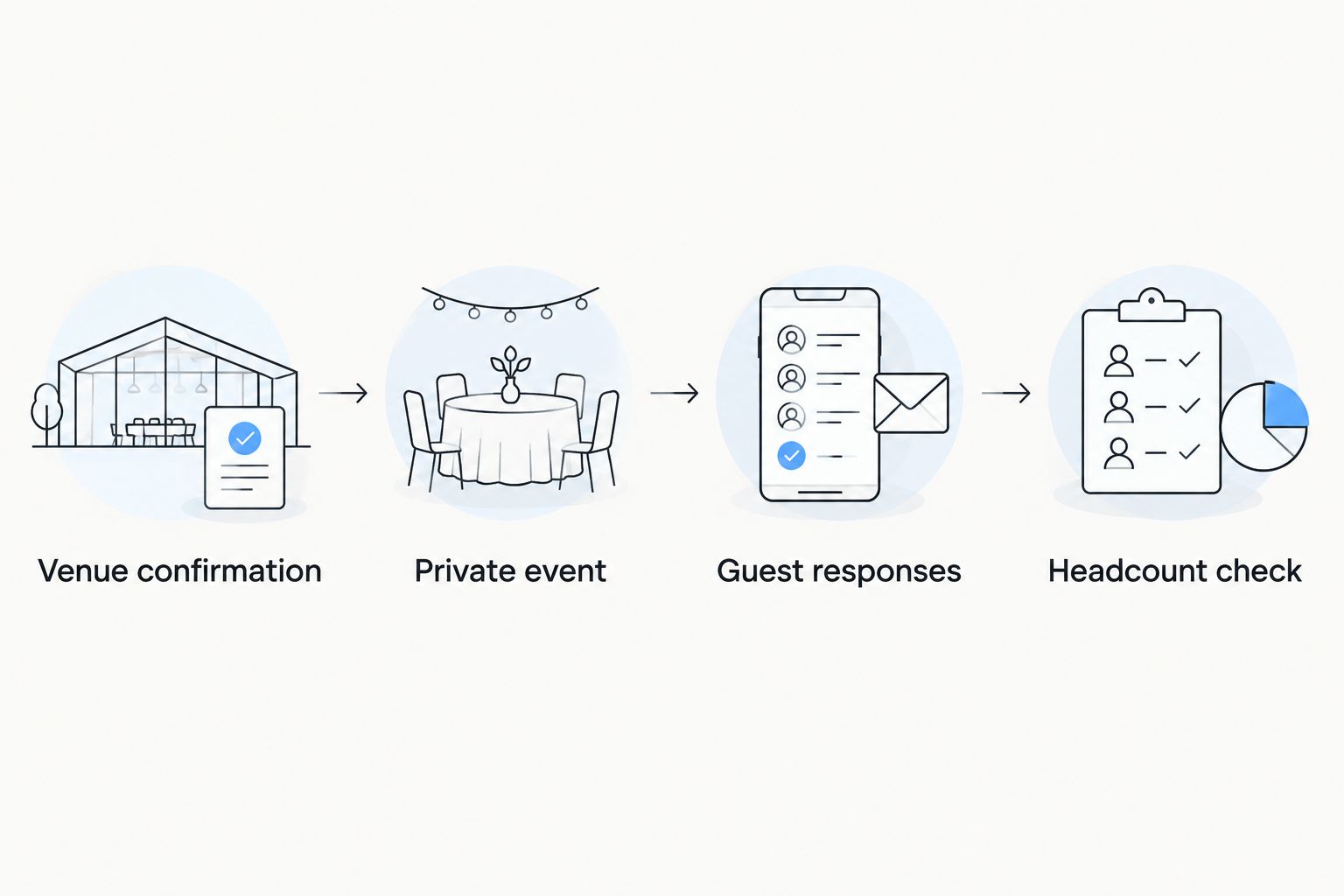
The workflow is straightforward: Venue confirmation, Private event, Guest responses, Headcount check. Each stage answers a different question, so skipping the final check leaves the organiser with an invitation list rather than a dependable attendance plan.
Event changes and guest updates
Update the existing event when arrangements change
- Confirm any proposed booking change with the venue before changing the published event. A discussion about a different date is not agreement to move the booking.
- Open the event's Edit control and amend the affected details. Match the date, timing and location to the revised confirmation.
- Add a short event update explaining exactly what changed. State the new detail directly instead of asking guests to work it out from the edited description.
- Send the same update through your workplace channel. Do not rely on every invitee noticing a Facebook notification.
- Recheck attendance if the change affects who can come. Amend your organiser's list and follow the venue's process for any resulting booking change.
Expected result: the venue record, Facebook event and workplace message all describe the same arrangement. Guests do not have to choose between competing versions of the plan.
Second workflow: gather interest before creating the final invitation
For a team still deciding whether to organise an outing, reverse the invitation timing—not the booking logic. Gather interest first, confirm the venue arrangement next, and create the final Facebook event afterwards.
- Send a provisional proposal through your workplace channel. Label the date and activity plan as proposed, not booked.
- Collect attendance intentions and relevant private questions. Keep the provisional total separate from confirmed attendees.
- Approach the venue with the resulting brief and complete its booking process.
- Create the private Facebook event using the confirmed details, then ask colleagues to reconfirm their attendance.
Best for: corporate groups that need an initial headcount before making arrangements. The advantage is a better-informed brief; the drawback is an extra response round, because provisional interest does not guarantee attendance.
For a 2026 staff social, this variant also keeps an early proposal from lingering as a misleading final invitation. Do not maintain two published events for the same outing unless guests can clearly tell which one replaces the other.
Troubleshooting
Colleagues think an RSVP completes their booking
Fix: state that Facebook responses organise attendance only. Keep the venue confirmation with the organiser and explain whether colleagues need to complete any separate action specified by the venue.
A colleague cannot access the private event
Fix: check that you invited the correct Facebook account and that the colleague is signed in to it. Send the essential details through your workplace channel so access to Facebook is not a condition of joining the outing.
You created the event with the wrong privacy
Fix: create a replacement event with the intended privacy. Tell invited colleagues which event to use and remove or cancel the mistaken version as appropriate; do not leave competing invitations circulating.
Facebook responses and your attendance list disagree
Fix: check for duplicate entries, replies received elsewhere and colleagues marked Interested. Ask people with conflicting responses to confirm their plans, then update your organiser's list.
A changed time has not reached everyone
Fix: edit the event and send a direct workplace update stating the new time. Ask for acknowledgement when the change affects arrival, rather than assuming the notification reached every guest.
Customize your workflow
Make the organiser's attendance list your working record and the Facebook event your shared noticeboard. This keeps venue correspondence, personal questions and guest-facing updates in their proper places.
For a wider team-night plan, use the guide to hosting a team-building night out. Decide whether your group wants friendly competition or a more relaxed social before finalising the activity brief.
Choose how colleagues will communicate during the outing, too. A named meeting point and a clear organiser make the plan easier to follow than a stream of last-minute comments. Confirm those details before you publish them.
For repeat corporate socials in 2026, reuse your planning checklist rather than copying an old event unchanged. Check every date, location detail, privacy choice and activity description against the new arrangement.
FAQ
Can I book a 1st Base corporate event just by selecting Going on Facebook?
No. Selecting Going records your attendance response to a Facebook event; it does not confirm a corporate reservation. Complete the venue's booking process separately and retain its confirmation.
What's the best way to use Facebook Events for a work social?
Use a private Facebook event to coordinate invitations and updates after confirming the venue arrangement. Keep a separate attendance list that includes colleagues who respond outside Facebook.
Should I create a private or public Facebook event for colleagues?
A private event is the appropriate starting point for a work-only invitation. Check the privacy and guest-invitation controls before publishing, and keep personal employee information out of the description.
Does Interested count towards my confirmed group size?
No. Interested indicates interest rather than a commitment to attend. Reconcile Going responses and direct replies before sending an updated headcount to the venue.
Can colleagues attend without a Facebook account?
Facebook should not be your only invitation channel. Send the agreed details through your workplace's approved channel and record direct responses in your attendance list.
What should I do if the corporate event date changes?
Confirm the revised arrangement with the venue before editing the Facebook event. Send a clear workplace update and recheck attendance because a different date can change who intends to come.
Which activities can I ask about for a Southampton corporate social?
1st Base offers interactive baseball batting cages, shuffleboard, ping-pong and foosball. Ask which activities form part of your proposed corporate arrangement rather than assuming they are all included.
One last thing
Check the organiser's list, not just the event's response total. A colleague who replied through your workplace channel still belongs in the headcount, while an interested Facebook guest is not automatically a confirmed attendee. That final reconciliation is the difference between a tidy invitation and a usable group plan.